Screenshot Zero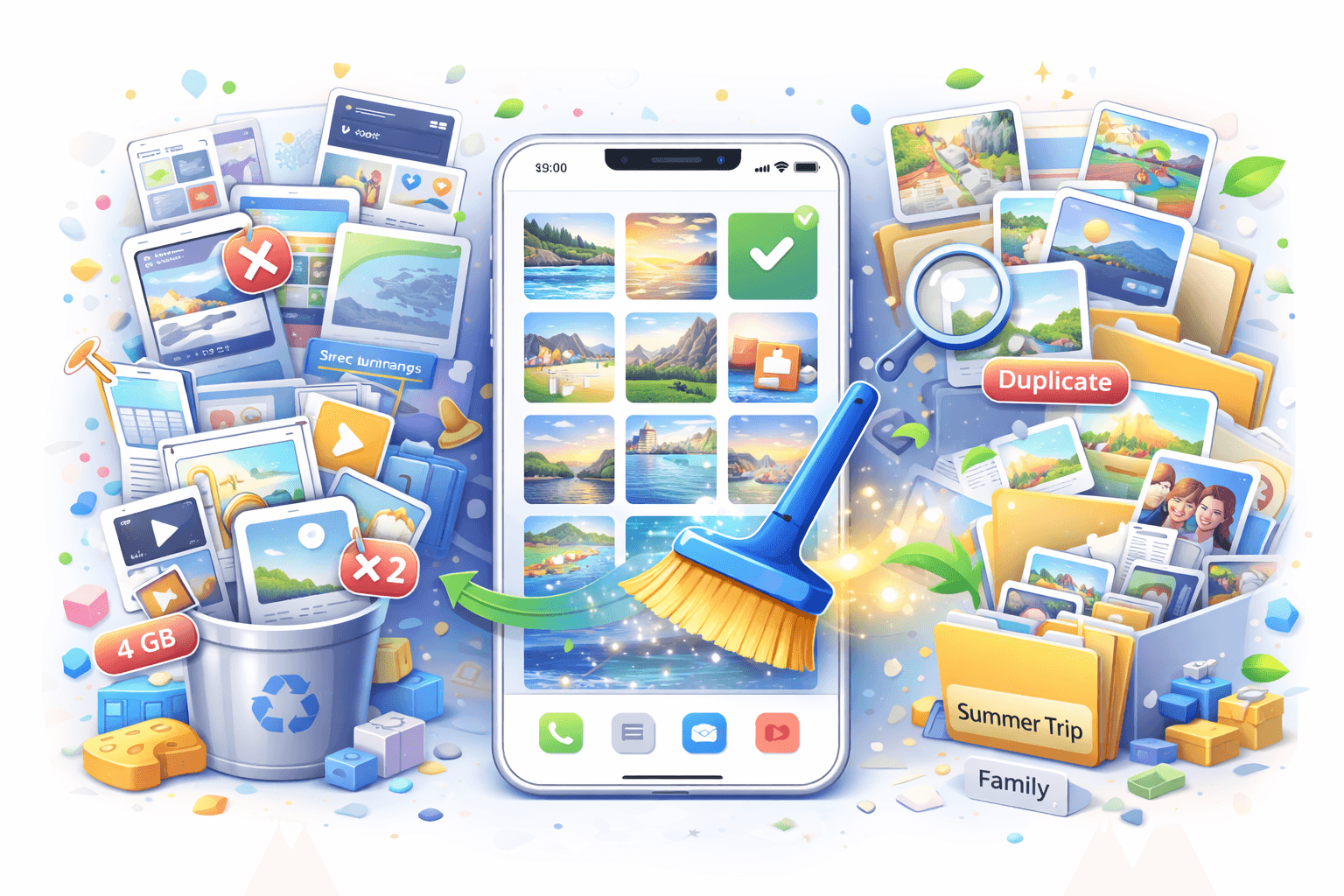
An iPhone photo library gets messy gradually. A few duplicates here, some blurry shots there, and a large pile of screenshots can make the Photos app harder to browse than it should be.
What to remove first
The fastest wins usually come from low-value images, not your best memories.
- Old screenshots
- Duplicate photos
- Blurry or accidental images
- One-time reference images
- Old videos you no longer need
Use a simple review order
Trying to organize everything at once can turn into a long project. A better approach is to work category by category.
- Start with screenshots.
- Review duplicates and near-duplicates.
- Remove blurry or accidental photos.
- Check large videos last.
Why screenshots are usually the easiest win
Screenshots are rarely emotional keepsakes. They are often practical images saved for a short period of time, which makes them one of the safest categories to clean first.
Screenshot Zero is designed around that problem. It helps you review screenshot clutter locally on your iPhone so you can clear out junk faster and keep full control over what stays.
Keep your library easier to browse
A clean library is not only about storage. It also makes it easier to find real photos, enjoy your albums, and navigate the Photos app without endless visual noise.